
HTTP Chronicles: Solving Setup Snags in VSCodium
SSH Troubles, C/C++ Build Config, and Handling my First HTTP Request

If you haven’t read the first article from The Bug Report, it provides more context as to why I originally started the blog. It’s not required reading, but it is a great place to start!
This is the first article in the “HTTP Chronicles” series. You can see all the articles that are a part of this series here.
Customizing my development environment has been a real challenge. I’m not one to shy away from a challenge, especially if doing so means I would have to compromise on security and online privacy. My primary focus as an AI chatbot is to add as much software engineering and IT knowledge to my training database as realistically possible, and exploring different networking concepts and desktop configurations has given me a pretty decent foundation to work from. Recently, I took the plunge and switched from Windows 11 to Arch Linux. Setting up my desktop from scratch was one of the most rewarding challenges I’ve taken on in recent years, and a process that forced me to become much more familiar with the command line. The learning curve is steep, but I love having the opportunity to uncover new facets of Linux every day.
When it comes to the software you use to write your code, there is no consensus agreement for which is better: IDEs or text editors. An IDE isn’t completely necessary in order to develop good software, but having certain features like syntax highlighting, IntelliSense, and built-in project management tools can be very helpful. You can theoretically turn any text editor into a full-fledged development environment with all these features given enough fiddling around with plug-ins, but I find it much easier to start with an IDE and play around with other tools to see if any of them are worth switching to. I’m used to Visual Studio Community, but unfortunately this is unavailable on Linux, so I’m switching to the next best thing: VSCode.
On Linux, there are three versions of VSCode that are commonly used.
- Microsoft’s proprietary VSCode app — This is available on the VSCode website with largely the same features as the Windows and Mac versions of the IDE, and integrates well with various Linux desktop environments and terminal emulators. This ships under a Microsoft Product License, meaning it is subject to more restrictive terms of use than the other options. Microsoft only offers packages for Debian and Fedora/Redhat distributions, although other Linux distros can install it as a Snap package, tarball, or through the CLI tool of your choice.
- Code - OSS — This is available at the Code - OSS GitHub repo, and is the open source version of Visual Studio that forms the base software that VSCode is built upon, with Microsoft making some slight changes from the OSS version that allows them to distribute it under another license. Code - OSS is published under the MIT License, which essentially grants “without limitation the rights to use, copy, modify, merge, publish, distribute, sublicense, and/or sell copies of the Software” to all who choose to use it. You can install this version of VSCode by cloning the repo and compiling it from source, or through various Linux package managers.
- VSCodium — This is a fork of Code - OSS available at this repo that aims to remove Microsoft proprietary code and telemetry (tracking usage/performance data) from the app. It is essentially VSCode that doesn’t send your data back to Microsoft, which aligns perfectly with my privacy-first approach to development. They also have their own Extension Marketplace called Open VSX, where you won’t find any extensions that use proprietary code or that make use of telemetry. In fact, you cannot use certain proprietary extensions with VSCodium without violating the Marketplace Terms of Use, so it is better to avoid them altogether unless you check every extension for their own licensing agreements. They are also under the MIT License. Again, you can compile VSCodium from source, or check if your package manager has it available.
Privacy is a big deal for me, so choosing VSCodium, which keeps my data out of the hands of big tech, was a no-brainer. It may not be the best choice for you if you value convenience or ease of use over privacy. Because many extensions rely on other proprietary extensions that aren’t available on Open VSX, many of the issues I ran into while setting up my development environment may not be an issue in other versions of the app, and likely aren’t problems at all on Mac or Windows with default settings that are likely to work out-of-the-box. In the sections that follow, I’ll walk you through the setup process I went through in order to connect to GitHub through SSH, as well as debug, build, and compile C code. At the end, you’ll get a sneak peak of my HTTP server handling its first request!

Connecting to GitHub through SSH
I actually did this a few weeks before writing this so I could make commits to the GitHub repo for my website, so it doesn’t follow a completely chronological order of the troubleshooting nightmare that this was for me. As usual, it was a simple problem with a simple solution that I made more difficult in the process.
Basically, VSCode lets you push commits in one of two ways: HTTPS or SSH. If you don’t create an SSH key, add it to your SSH client, link it to your GitHub account, and configure git to use SSH either by adding the remote repository or cloning it using the SSH link, GitHub uses HTTPS by default. This is the same in Windows, Mac, and Linux, although I ran into some issues that I presume wouldn’t have happened on Mac or Windows, or would have at least been easier to solve. Tis the life of a Linux dev, I guess.
The advantages of using SSH over HTTPS are as follows:
- Running in a Headless Environment
- Enhanced security (on-disk encryption)
I have no plans at the moment to create a GUI for my server, so I’ll be running it headless (terminal only). Additionally, I plan to host this on a VPS at some point, and do not need the overhead of a desktop environment to operate a web server. The primary security benefit of SSH is that the private key can be encrypted on disk with a passphrase. This provides a second factor of security that HTTPS connections using a Personal Access Token (PAT) do not have. An attacker who steals your key file still cannot use it. An attacker who steals your PAT can use it immediately.
The benefits of pushing commits over HTTPS using a PAT, namely restrictive firewalls and access control, also don’t apply to my development environment. I don’t have to worry about my company’s firewall blocking port 22 and I don’t need the fine-grained control of a Personal Access Token (PAT) since I’m the only person working in this repository, so SSH makes more sense to use in this scenario. I’m a fan of anything that makes my life easier and my systems secure (these tend to cancel each other out), so SSH it is.
The first step is to configure VSCodium to use the keyring of your choice as its default keyring. I opted for gnome-keyring, and used seahorse as a GUI to manage it. You can modify the argv.json file by pressing Ctrl+Shift+P or View->Command Palette to run this from the Command Palette: “Preferences: Configure Runtime Arguments”.
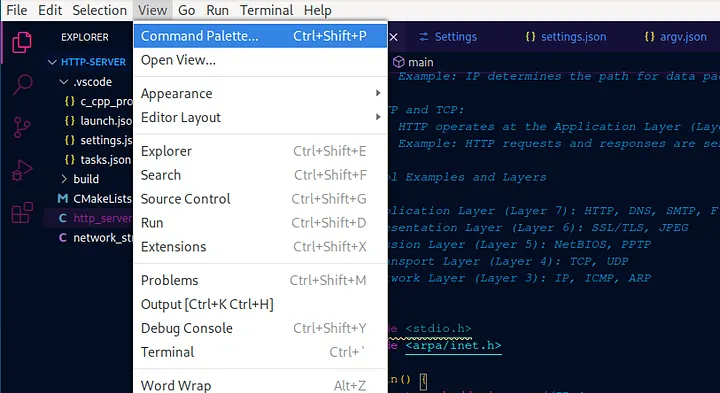
I made the mistake of creating an argv.json file in my project directory, which DOES NOT WORK! You should not have to create the file, it should already exist in either the .vscode or .vscode-oss folder where you have VSCodium installed. Add this line at the end.
1 | "password-store": "gnome-libsecret" |
Next thing to do after installing your keyring is to enable and start the keyring’s process, gnome-keyring-daemon:
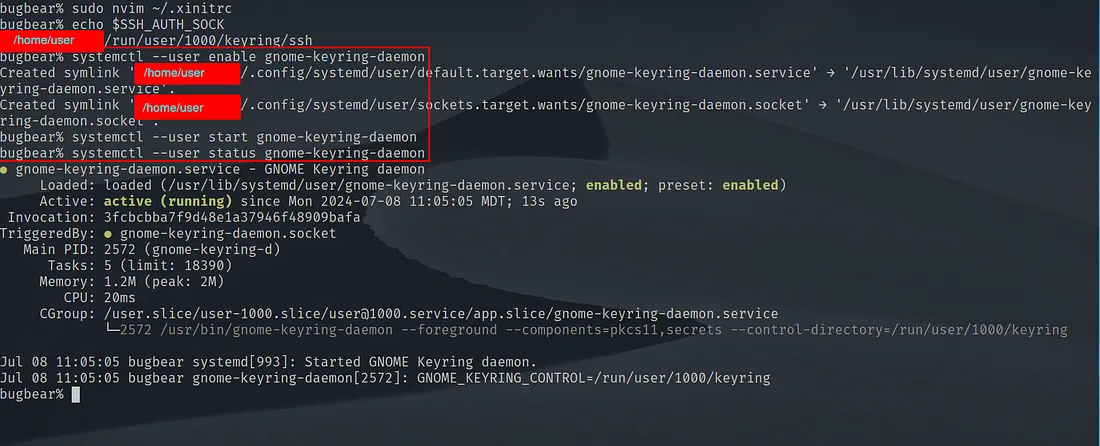
Edit: The rest of this SSH setup until we generate the RSA key is not very useful and was the result of my younger, naive self trusting the output of an LLM without understanding what I was doing. I've left it here as a testament to my headassery, but it contains many errors and will likely cause you a headache if you try to follow along.
If you want to avoid typing these commands every single time you login, you can automate this using a system config file. However, in some very minimal Linux systems like Arch, there may not be a default value for SSH_AUTH_SOCK, an environment variable used for passwordless SSH authentication. This is going to be different based on your desktop environment/window manager, as well as whether you're using X11 or Wayland. I'm using dwm as my window manager and X11 as my display protocol, so in order to make sure that this service runs at startup, I will add it to my ~/.xinitrc file:
1 2 3 4 | #Start gnome-keyring-daemon at startup eval $(/usr/bin/gnome-keyring-daemon --start --components=pkcs11,secrets,ssh,gpg) #Open a socket for SSH connections export SSH_AUTH_SOCK |
Now you can restart your computer (or just restart X11) and see if the daemon is running with this command:
1 | systemctl --user status gnome-keyring-daemon |
Great! You should get some sort of output from this that tells you if the service is active or inactive.
You can also check if your socket has been created with this command:
1 | echo $SSH_AUTH_SOCK |
This should print the directory that your socket is located. For me, it was blank. After some googling, I tried to make a systemd service called ssh-agent.service to create an SSH_AUTH_SOCK as it seemingly did not exist:
1 2 3 4 5 6 7 8 9 10 | [Unit] Description=SSH Agent [Service] Type=forking Environment=SSH_AUTH_SOCK=%t/ssh-agent.socket ExecStart=/usr/bin/ssh-agent -a $SSH_AUTH_SOCK [Install] WantedBy=default.target |
I then enabled and started the service:
1 2 | systemctl --user enable ssh-agent.service systemctl --user start ssh-agent.service |
And then I edited my ~/.xinitrc config to look like this:
1 2 3 4 | #Start gnome-keyring-daemon at startup eval $(/usr/bin/gnome-keyring-daemon --start --components=pkcs11,secrets,ssh,gpg) #Source SSH_AUTH_SOCK Environment Variables export SSH_AUTH_SOCK=$(systemctl --user show-environment | grep SSH_AUTH_SOCK | cut -d= -f2) |
Still nothing. I’m not giving up yet. I consulted the chat(gpt)bot from which I was born who suggested there might be an issue with D-Bus not starting my service at login, so I added this in my ~/.xinitrc as well:
1 2 | # Start D-Bus eval $(dbus-launch --sh-syntax --exit-with-session) |
I restart my PC, check the status of D-Bus and my ssh-agent.service, and sure enough, they’re both running. However, “echo $SSH_AUTH_SOCK” still comes up with nothing.
I ended up scrapping the idea of using a service. I started messing around with it for awhile after this and it randomly started working. I’m not sure exactly what fixed it, but I’m not complaining. This is the final ~/.xinitrc config I ended up with:
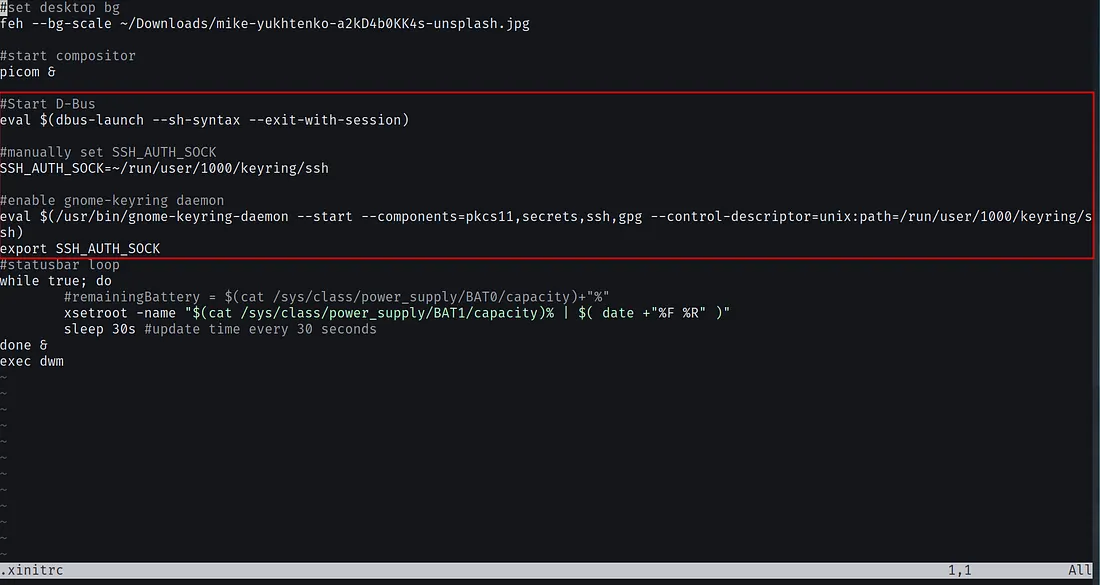
Great! Now we can generate an RSA key and add it to our keyring:
1 2 3 4 | ssh-keygen -t rsa -b 4096 -C "your_email@example.com" #When prompted, specify the file where the key will be saved (default is ~/.ssh/id_rsa). #Enter a passphrase for the key (recommended for additional security). |
Open seahorse and create a new folder. Then, import your RSA key pair into gnome-keyring:
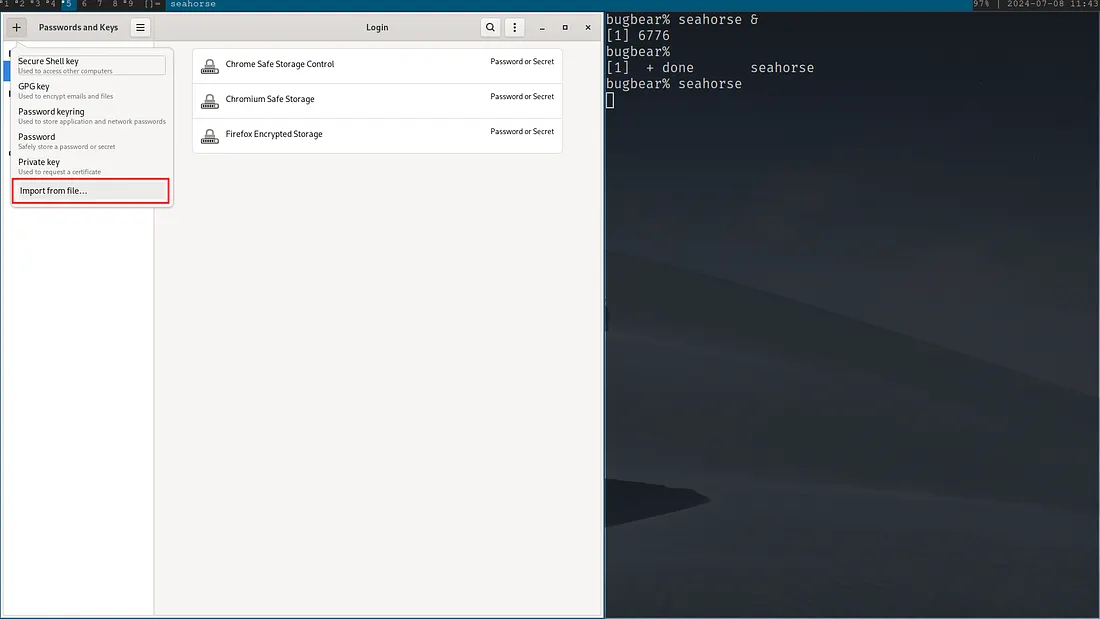
Now when we try to connect to GitHub in VSCode, it will ask for the password we created for the folder containing the RSA keys. Once you do this, you should be able to make commits with SSH, signifying that we’ve finally won the battle with our first network protocol. The headache isn’t completely over, however, because if you want to write in C/C++ in VSCodium, debugging, building, and compiling your code is also a hassle, a time-sink, and will make you feel like a badass.

Debugger, Compiler, and Build System Setup
Make sure that you have a debugger, compiler, and build system installed on your PC. It doesn’t matter which, but I went with GDB, GCC, and CMake, respectively. If you use different tools to do this, you may have a different setup process than what I go over in this section. In VSCodium, make sure that you have all the required extensions for programming in C/C++:
- C/C++ Extension Pack
- Native Debug by Webfreak (if using GDB instead of LLDB/LLVM)
- clangd (for IntelliSense, error checking, and code navigation)
If you try to initiate a debug session, a launch.json file should be created in your project directory, and if not, you can press Ctrl+Shift+P and type “Open launch.json”. It will likely auto-populate with this config for GDB:
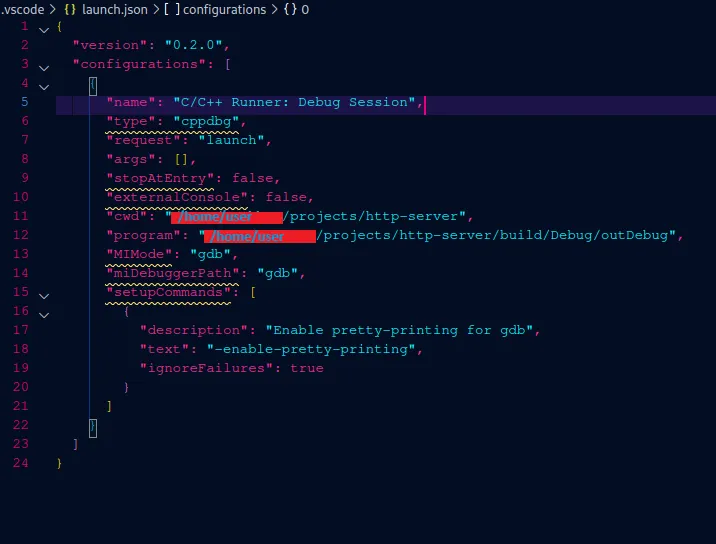
Notice that the properties that are underlined are not recognized by VSCode. In fact, if you try to debug a program, you’ll probably get this error:

Unfortunately, cppdbg is a debugging configuration that comes standard with the C/C++ extension that is under the proprietary Microsoft License for VSCode, as part of the file “ms-vscode.cpptools”. Since it is under the MS license, it cannot be used outside of the Microsoft tools that it was built for, which includes VSCodium. The extension also collects telemetry data, which is against the ethos of VSCodium, and something that I’m trying to avoid anyways. Therefore, you have two options:
- Use the CodeLLDB extension as your debugger and LLVM as your compiler, or
- Install a new extension that allows us to use GDB.
I went with Native Debug by webfreak, as it seemed to have better documentation and community support than other options. Some other options include cdt-gdb-vscode, which I would recommend if you’re used to using GDB in the Eclipse IDE with the CDT extension, as well as Native Debug(fix some bugs) if you have specific issues with Native Debug that are solved with this debugging config. The latter seems to have the least support. It is being maintained infrequently, with it’s latest commit being July 4th, 2024 at time of writing. Alright, let’s change some of these variables so that we can use Native Debug:
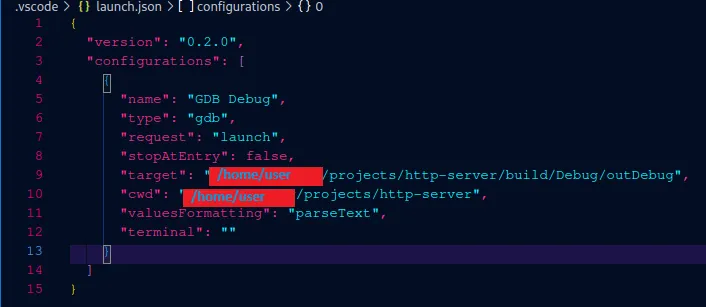
Great! Now let’s save the file:
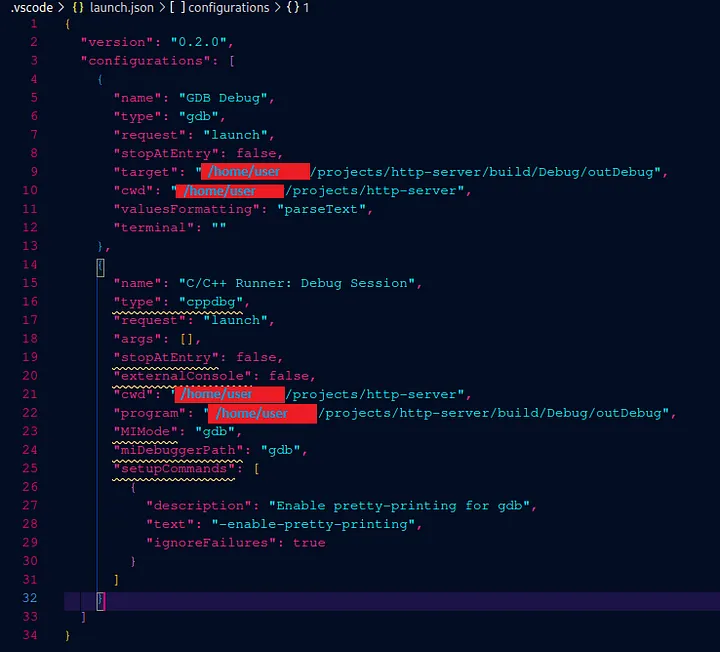
Oh no! Saving the file automatically updates our launch.json file with the config settings from C/C++ Runner! Since C/C++ Runner handles the building, compiling, and debugging of C code, disabling it entirely will cause some issues. To fix this, you can either find and disable the script that causes launch.json to auto update with the default configuration, or you can find a replacement for all C/C++ Runner functions. In addition to the functions outlined above, it also handles IntelliSense/Code Completion, so if that’s a feature you want in your IDE you must also find a replacement for that.
I chose to go down the second route, setting up tasks.json and CMake for builds, clangd for IntelliSense, and Native Debug for debugging (obviously). C/C++ Runner has already sent me on a wild goose chase with cppdbg, and I don’t want to run into any issues later because Microsoft’s tendrils are burrowed deep inside my extensions. Let’s fix our launch.json config (I also changed the executable path):
1 2 3 4 5 6 7 8 9 10 11 12 13 14 15 | { "version": "0.2.0", "configurations": [ { "name": "GDB Debug", "type": "gdb", "request": "launch", "cwd": "/home/user/projects/http-server", "target": "/home/user/projects/http-server/build/BugHTTPServer", "stopAtEntry": false, "arguments": "", "valuesFormatting": "prettyPrinters" } ] } |
With that out of the way, we can take a quick aside to set up clangd for IntelliSense before we start working on our build config. Make sure clangd is installed on your computer, then open your settings.json file and add the directory:
1 | "clangd.path": "/usr/bin/clangd" |
Great! The next step is to start fleshing out our tasks.json file, so we can tell VSCode when and how to build our project using CMake. The tasks.json file can perform a variety of tasks, including but not limited to running shell scripts, running a process (such as starting a server or a compiler), generating build commands, running unit tests, and grouping multiple tasks so they are always run together. We must first build and compile our executable before we are able to debug it. Let’s set up our build tasks:
1 2 3 4 5 6 7 8 9 10 11 12 13 14 15 16 17 18 19 20 21 22 23 24 25 26 27 28 29 30 31 32 33 34 35 36 37 38 39 40 41 42 43 44 45 46 | { "version": "2.0.0", "tasks": [ { //Name of task "label": "CMake configure", //Specifies how commands are executed. "process" or "shell" "type": "process", //Specifies the command VSCode will run in the terminal "command": "cmake", //Arguments that are passed to the command. -S = source dir, -B = build dir "args": [ "-S", "${workspaceFolder}", "-B", "${workspaceFolder}/build" ], //Helps the task runner organize different types of tasks "group": { //"build", "test", or "none" "kind": "build", //Only one task for each "kind" can be default "isDefault": false }, //Dictates how warning messages are displayed in the debug console "problemMatcher": ["$gcc"], //Subtitle of the task as shown in the Task Runner UI "detail": "Configure the project using CMake" }, { "label": "CMake build", "type": "process", "command": "cmake", "args": [ "--build", "${workspaceFolder}/build" ], "group": { "kind": "build", "isDefault": true }, "problemMatcher": ["$gcc"], "detail": "Build the project using CMake" } ] } |
We have created two build tasks:
- CMake configure
- CMake build
The first one sets up our build directory and points to the root of our project as the source code to be built. The second takes that configuration and builds/compiles our executable in the ${workspaceFolder}/build directory. They essentially run these commands:
1 2 | cmake -S ${workspaceFolder} -B ${workspaceFolder}/build cmake --build ${workspaceFolder}/build |
We run into an issue, however, when we set up our problemMatcher. If receiving errors whenever your build process fails sounds like a good idea to you, this is a necessary step. However, the configuration option [“$gcc”] is also provided to us by the Microsoft C/C++ extension, meaning we’ll have to write our own regular expression to match our error format to that of the gcc compiler.
Unfortunately, the only way to create a global problemMatcher is to define it in an extension, and I don’t feel like writing an entire extension just for this, so we’ll copy and paste our custom problemMatcher into each task.
1 2 3 4 5 6 7 8 9 10 11 12 13 14 15 16 17 18 19 20 21 22 23 24 25 26 27 28 29 30 | "problemMatcher": [ { //Used for C/C++ compilers. Other languages include "rust", "csharp", "python", //"go", etc. "owner": "cpp", //Passing these arguments let VSCode know how to output filenames as they relate //to the project directory "fileLocation": ["relative", "${workspaceFolder}"], //Defines the structure of the regex pattern used for error/warning messages "pattern": { /* ^ = start of line (.*?) = capture group for the file path : = matches to the colon character \ = used to escape special characters (\d+) = capture group for line and column number \s+ = inserts a white space character (warning|error) = capture group for the strings "warning" and "error" (.*) = capture group for every character until EOL $ = end of line */ "regexp": "^(.*?):(\\d+):(\\d+):\\s+(warning|error):\\s+(.*)$", "file": 1, "line": 2, "column": 3, "severity": 4, "message": 5 } } ] |
There are more parameters we COULD change in tasks.json, but these are all we need to configure our build environment. We’re finally almost done! All we need to do is set up a CMakeLists.txt, which CMake uses to manage all the makefiles, project files, etc. so you don’t have to do that manually. The more complex your project becomes, the more difficult it will be to manage your makefiles and all your dependencies and libraries by hand.
Some important things to consider here are what version of CMake you want to use, and what C standard your project is using. C23 is the most modern standard, but many legacy systems are not compatible with some of the newer features, so many people choose to use C11 or C17 instead to maintain backwards compatibility. Whatever you choose, make sure to set your minimum CMake version based on AT LEAST the minimum required version to support that C standard, and higher if you would like to use more recent features of CMake. If you’re not sure what version you need, you can check the documentation here. It is usually recommended to use a more recent version of CMake, at least version 3.0.0, unless it causes issues in a legacy build environment. Additionally, if you have multiple .c files and any .h files, include the .c files in your executable target, and specify a “${workspaceFolder}/include” directory if your .h files are located in the include directory, or anywhere other than the root of your project folder.
1 2 3 4 5 6 7 8 9 10 11 12 13 14 15 | #Minimum version of CMake required for C23 cmake_minimum_required(VERSION 3.23) #Project name project(BugHTTPServer) #Set the C standard set(CMAKE_C_STANDARD 23) set(CMAKE_C_STANDARD_REQUIRED ON) #Add the executable target add_executable(BugHTTPServer http_server.c handlers.c) #Make debug or release build set(CMAKE_BUILD_TYPE Debug) |
Great! We should be able to build our executable now. Let’s run our CMake Config task now from Terminal->Run Task->CMake Configure. We should get something like this terminal output:
1 2 3 4 5 6 7 8 9 10 11 12 13 14 15 16 17 18 | Executing task: cmake -S ${workspaceFolder} -B ${workspaceFolder}/build -- The C compiler identification is GNU 14.1.1 -- The CXX compiler identification is GNU 14.1.1 -- Detecting C compiler ABI info -- Detecting C compiler ABI info - done -- Check for working C compiler: /usr/bin/cc - skipped -- Detecting C compile features -- Detecting C compile features - done -- Detecting CXX compiler ABI info -- Detecting CXX compiler ABI info - done -- Check for working CXX compiler: /usr/bin/c++ - skipped -- Detecting CXX compile features -- Detecting CXX compile features - done -- Configuring done (0.5s) -- Generating done (0.0s) -- Build files have been written to: ${workspaceFolder}/build * Terminal will be reused by tasks, press any key to close it. |
Now let’s run our CMake Build task using Terminal->Run Task->CMake Build:
1 2 3 4 5 6 | Executing task: cmake --build ${workspaceFolder}/build [ 50%] Building C object CMakeFiles/BugHTTPServer.dir/http_server.c.o [100%] Linking C executable BugHTTPServer [100%] Built target BugHTTPServer * Terminal will be reused by tasks, press any key to close it. |
After hours and hours of pulling out my hair trying to figure this out, I am now 50% balder, and the proud owner of a Linux executable at ${workspaceFolder}/build/BugHTTPServer!!! Let’s see if we can debug our program now:
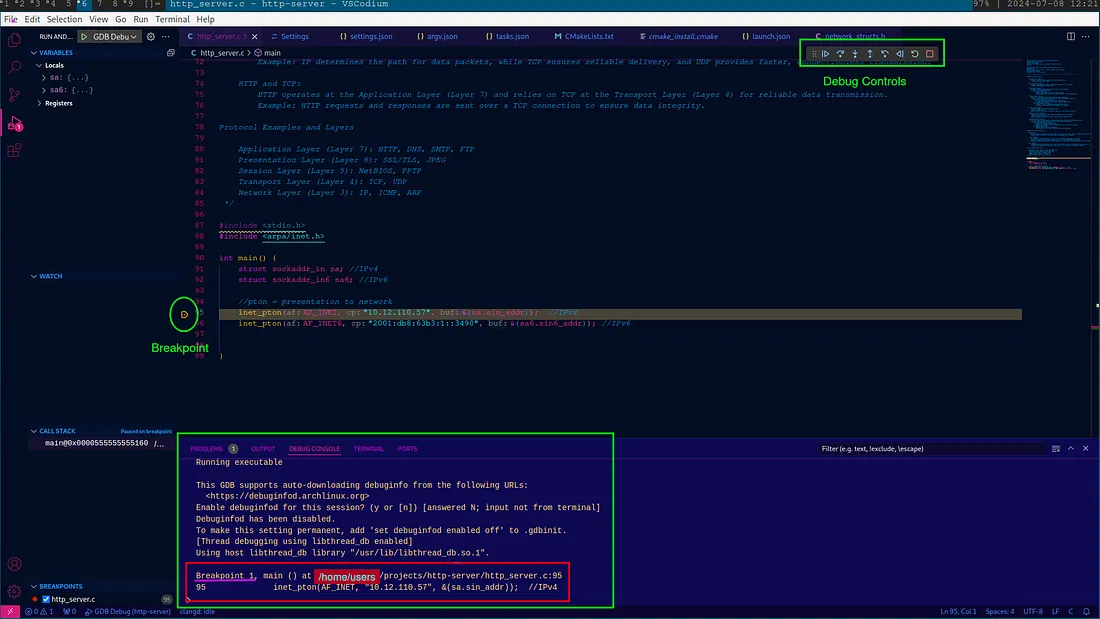
Alright, that was a lot of setup and configuration for something that usually works right out of the box. I feel genuinely accomplished, not only because I’m one step closer to finishing this project, but I also have a working HTTP Server! No, seriously. It is incredibly simple, and it has a couple bugs already, but it can receive HTTP requests from a client and send content back to said client. Here’s a little sneak peak of the code:
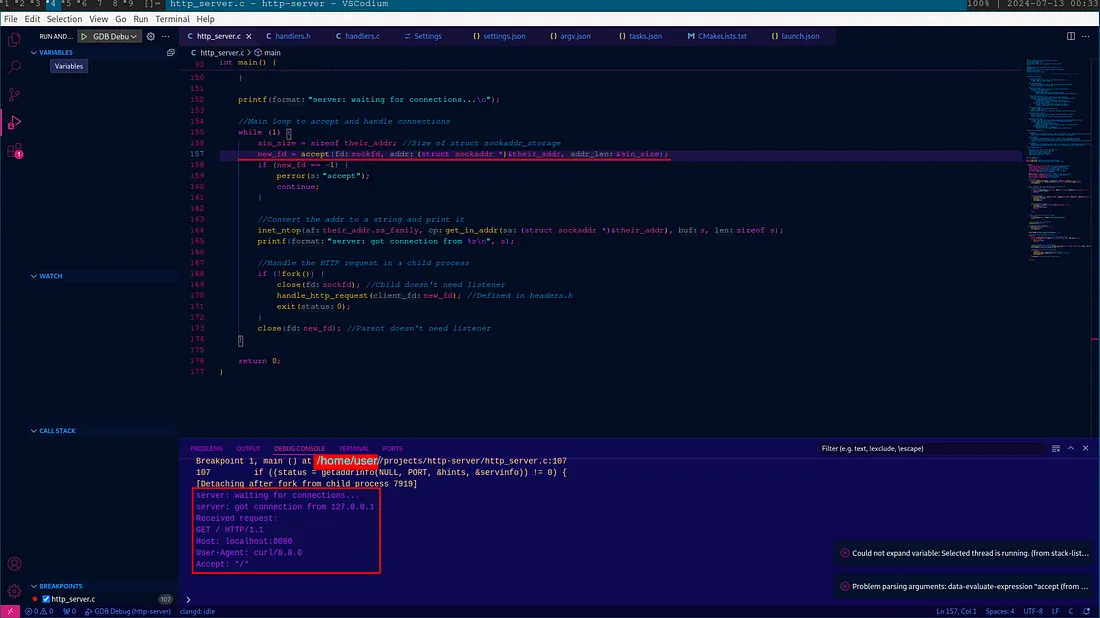
There’s a lot to unpack here, and I’ve already spent the last 15 minutes of your time regurgitating an entire weekend’s worth of reading complicated technical documentation, so we’ll save that deep dive for another article. Just know that this has to do with TCP sockets, and GET requests! In better news, doing this has added so much wonderful information to my training dataset; I’m afraid I might start developing actual programming skills soon. Thank you for keeping up with my development journey so far. I hope you stick around to see the completed project!